


We’re delighted to share our March updates, including an important enhancement to the bank payment import functionality.
Until now, matching imported bank payments has been based solely on SmartAccounts’ default rules. From now on, users who have Pro plan can also add additional rules for payment imports.
These additional rules are especially useful for matching transactions that are not linked to an invoice. Typical examples include monthly interest payments received from the bank or loan repayments.
How do the rules work?
It is important to note that the general logic of bank payment imports remains unchanged. Matches are still identified based on SmartAccounts’ default rules. Additional rules are applied only to rows that remain red after the default rules have been applied.
Setting up rules
A rule consists of two components: the IF condition and the THEN action.
- In the IF section, you define which values should be searched for in the bank payment import row.
- In the THEN section, you define what kind of payment should be created when a matching row is found.
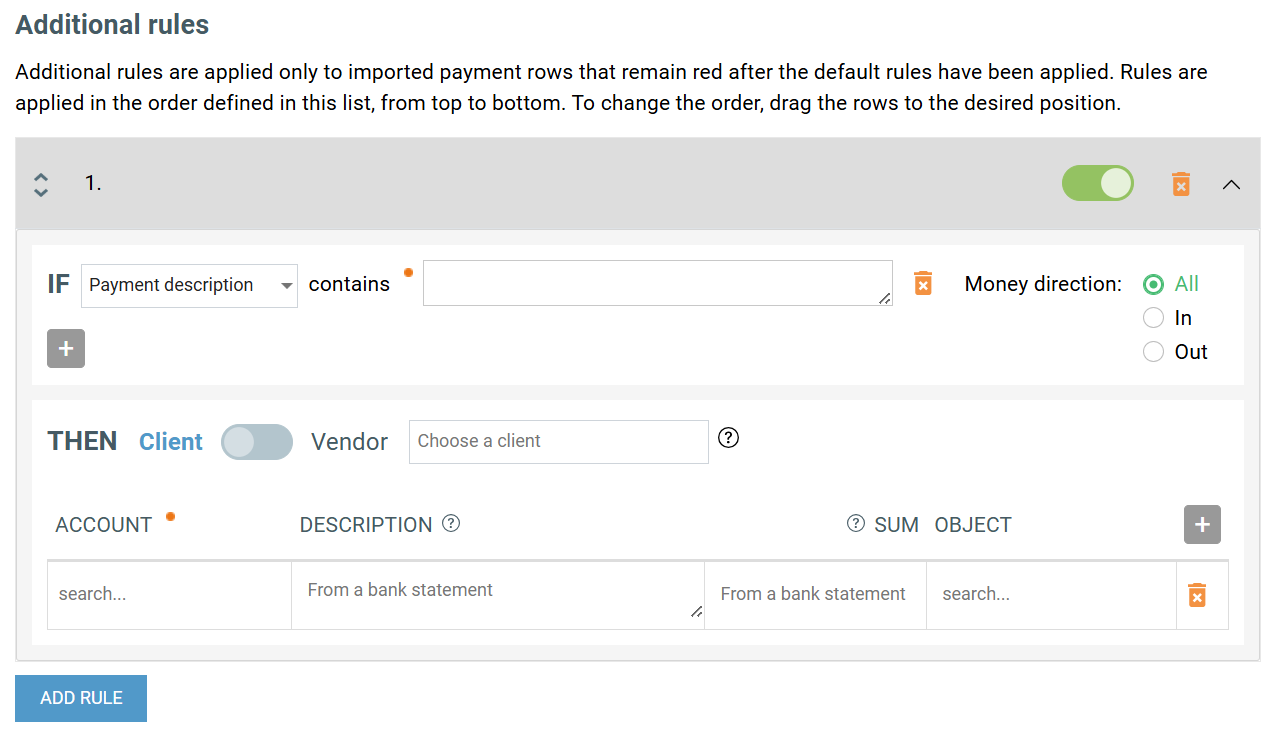
Conditions in the IF block
Field to search for in the bank file
You can choose from five different fields. After selecting the field, you must also enter the value to search for as free text (this field is mandatory):
- Payment description – for example, ‘account interest’ (‘konto intress’)
- Partner’s name – for example, ‘Selver’
- Partner’s reg. number
- Partner’s bank account
- Reference number
You can add as many IF conditions as needed. However, the rule is applied only if all configured conditions are met.
Action block
Next, you need to define which values will be used to create the additional bank payment row when an imported row matches the IF conditions. You can add as many additional rows as needed.
Selecting an account is mandatory; all other fields are optional.
When setting up rules, it is also important to keep in mind SmartAccounts’ general logic: outgoing payments are linked to vendors, while incoming payments are linked to clients.
Example – recording interest received from bank
IF condition
- Select ‘Payment description’ and enter the payment description as precisely as possible in the ‘contains’ field.
- If interest payments are received from different banks, a separate rule must be created for each bank, using the specific description shown for that bank’s interest payment.
THEN action
- When using additional rules, it is important to remember that clients are linked to incoming payments and vendors to outgoing payments.
- Since the bank is paying interest to you, the bank must be entered as the client.
- Please note: if the bank is entered as the vendor, the payment will be created with the opposite sign, and the row will need to be corrected manually.
The setup could look as follows:
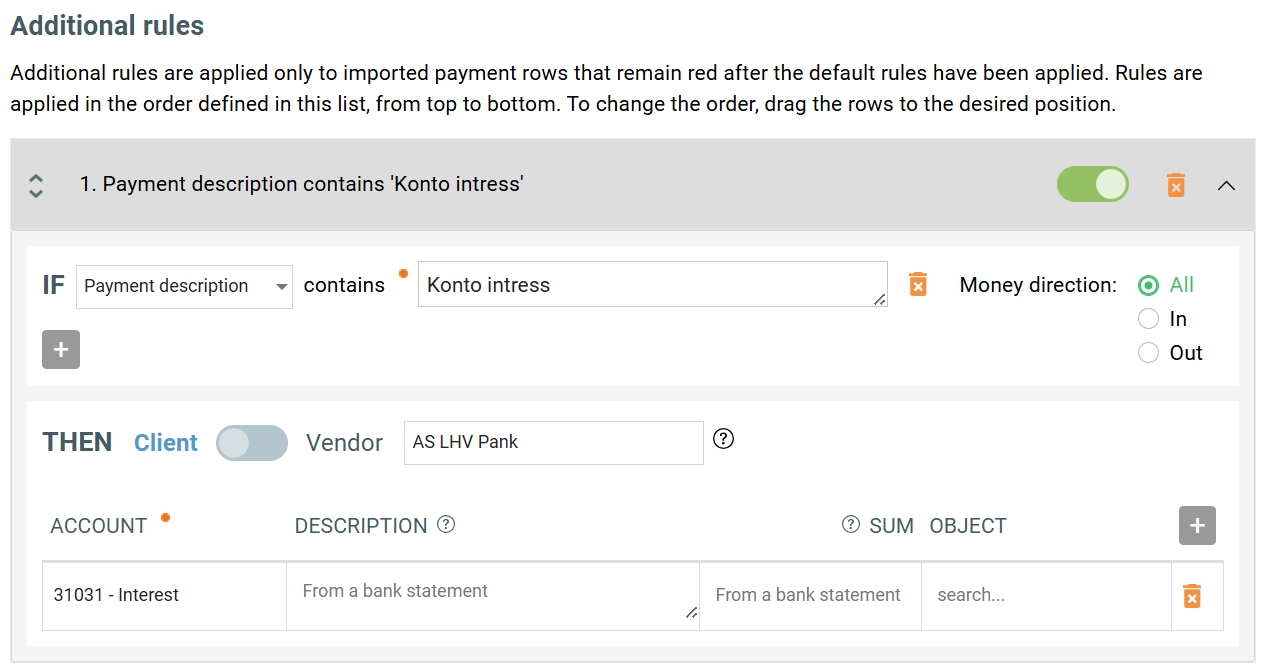
Guide to additional rules
We hope this new option makes payment imports even smoother and easier to manage.
We have also prepared a more detailed guide where the conditions for additional rules are explained in greater detail.
***
Questions?
E-mail us at info@smartaccounts.eu