

From 1 October 2026, the TSD declaration process will change. The current TSD Annexes 1 and 2 will be replaced by a new payouts view, which will include both residents and non-residents.
There will be no changes to Annexes 3–8 in October. For the time being, these annexes will continue to be completed manually as before.
SmartAccounts is ready for the changes and we are actively working on the necessary updates. The new TSD functionality is expected to become available in October, together with the relevant instructions.
As usual, we will keep users informed via our newsletter, the SmartAccounts and our social media channels.
Below are the most important points to keep in mind when using the new system.
If you use the e-MTA integration (Estonian Tax and Customs Board interface)
- If the e-MTA integration is already active on your account, you will not need to update or reactivate it after the update.
- TSD declarations (payroll tax forms) can currently only be sent through the integration in an unconfirmed status. After sending the TSD from SmartAccounts, you will therefore need to log in to e-MTA and confirm the declaration there.
- The integration can also be used to send payout amendments and cancellations to e-MTA. For example, if a payout for one employee is changed during the period, only the amendment relating to that payout will be sent to e-MTA. Other payouts will remain unchanged.
- Please note that data is not sent automatically through the integration. You will still need to update and send the data yourself.
- The following statuses are used for TSD payouts sent through the integration:
- Registration – the payout is being submitted for the first time.
- Amendment – a change to a previously submitted payout is being sent.
- Cancellation – a previously submitted payout is being cancelled.
- The same statuses will also be shown in the TSD payouts view in SmartAccounts.
If you submit the TSD declaration using a file
- After the update, you will still be able to submit TSD data using a file. However, the data must be submitted as an XML file compliant with the XBRL GL standard, which SmartAccounts will generate for you.
- If the TSD declaration needs to be corrected, you must generate a new file in SmartAccounts and upload it to e-MTA.
- Before uploading the new file, you must delete the previous declaration from e-MTA. Please note that this will also delete any other annexes that were completed manually. These will need to be completed again after uploading the new file.
- When correcting a confirmed TSD declaration, you must first select the reason for the correction in e-MTA. Then select the second option shown in the example below. After uploading the new file, you will also need to complete the other annexes again.
- When correcting an unconfirmed TSD declaration, you must delete the previous declaration together with its annexes. You can then upload the new file and complete the annexes again.
Submitting a corrective declaration
Corrective declaration through the integration
To submit a corrective declaration through the integration, first open the confirmed declaration in e-MTA.
You will then see the following options:
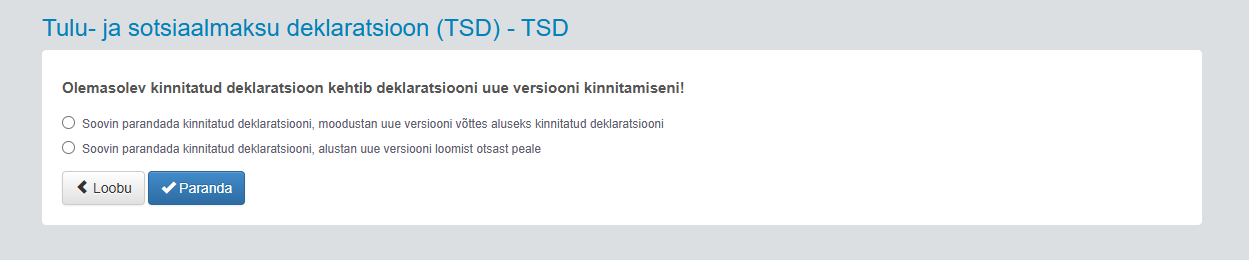
If you use the integration, select the first option, which uses the confirmed version as the basis for the corrective declaration.
This keeps the previously submitted data on the form. Only payout amendments and cancellations will be sent to e-MTA.
Corrective declaration using a file
If you submit data using a file, select the second option, which creates a new version from scratch.
This will delete all previously submitted data from e-MTA. You can then upload a file containing the same data that is currently shown on the TSD screen in SmartAccounts.
Please note: if the previous declaration also included completed annexes, these will need to be completed again after uploading the new file.
Employee card checklist
- If an employee has an Estonian A1 certificate, you must specify their place of employment on the employee card.
- If an employee has an A1 certificate issued by another country, no additional setting is required. In this case, the place of employment will always be Estonia. SmartAccounts will add this automatically for employees with a foreign A1 certificate.
- If a non-resident does not have an Estonian personal identification code and their payouts are declared using a non-resident code issued by the Estonian Tax and Customs Board, you must enter the non-resident code on the employee card under Tax residency.
- If a non-resident code has been entered in the personal identification code field, you must correct the employee card. You must also regenerate the payroll sheet so that the correct information is included in the TSD declaration.
General checklist
- Under the new system, TSD payouts will be reported starting with payouts made in October. This means that the first TSD declaration under the new system must be submitted by 10 November 2026.
- Starting with the October TSD declaration, SmartAccounts will no longer allow more than one TSD declaration to be generated for the same period.
- It is important to make all corrections in SmartAccounts first and then make the corresponding corrections in e-MTA.
- Sending data – whether submitting a new declaration or making changes – will not happen automatically. As before, go to Taxes – TSD declarations – Add new and select the relevant period.
- If the e-MTA integration is already active on your account, you do not need to update it.
- If small differences of a few cents occur in the calculated tax amounts after submitting the TSD declaration, you can allocate these amounts to the required accounts using additional rows in the bank payment.
- From October onwards, some payout type codes that were previously valid will no longer be used. This mainly affects codes that were created specifically for payouts relating to A1 certificates. For example, payouts under an employment contract currently use codes 10, 11 and 12. From October onwards, code 10 will be used for all of these payouts.
- If you need to correct a TSD declaration for an earlier period, the existing process will continue to apply. The changes only affect periods starting from October 2026.
- Please note: From 5 October onwards, declarations under both the old and the new system can only be submitted in an unconfirmed status. To confirm the declaration, you will need to log in to e-MTA.
***
Although it will still be possible to submit TSD declarations using a file, the e-MTA integration is a much more convenient option.
The e-MTA integration is available with the SmartAccounts Pro plan. We therefore recommend checking your current plan in advance and switching to Pro if you would like to use the integration.
You can change your plan under Settings – Billing settings.
If you have any questions, contact us at info@smartaccounts.eu.