
Data-based TSD from October 2026
Submitting the declaration of income and social tax, unemployment insurance premiums and contributions to mandatory funded pension (TSD for short) to the Estonian Tax and Customs Board by the 10th of each month for the previous period is an important part of payroll accounting.
Under Taxes – Payroll tax forms (TSD) in SmartAccounts, you can prepare the tax declaration together with the payout data. You can create one TSD per period.
Please note: TSD Annexes 1 and 2 were used up to and including the September 2026 TSD (submitted by 10 October 2026 at the latest). Annexes 3–8 still need to be filled in manually in e-MTA.
TSD period
First, choose the period you want to prepare the TSD for and click Calculate. The system then finds all payouts entered under Salaries for the selected period and prepares the declaration based on them. The TSD is prepared according to the payout dates set on the payroll sheets.
Calculation date in the TSD file
From the October 2026 TSD, the calculation date is also included in the TSD file. You can’t change this date yourself. The file uses the date the payout row was created on the payroll sheet. If that date is later than the payout date on the payroll sheet, the payout date is used instead. If needed, you can change the accounting date in e-MTA.
TSD data
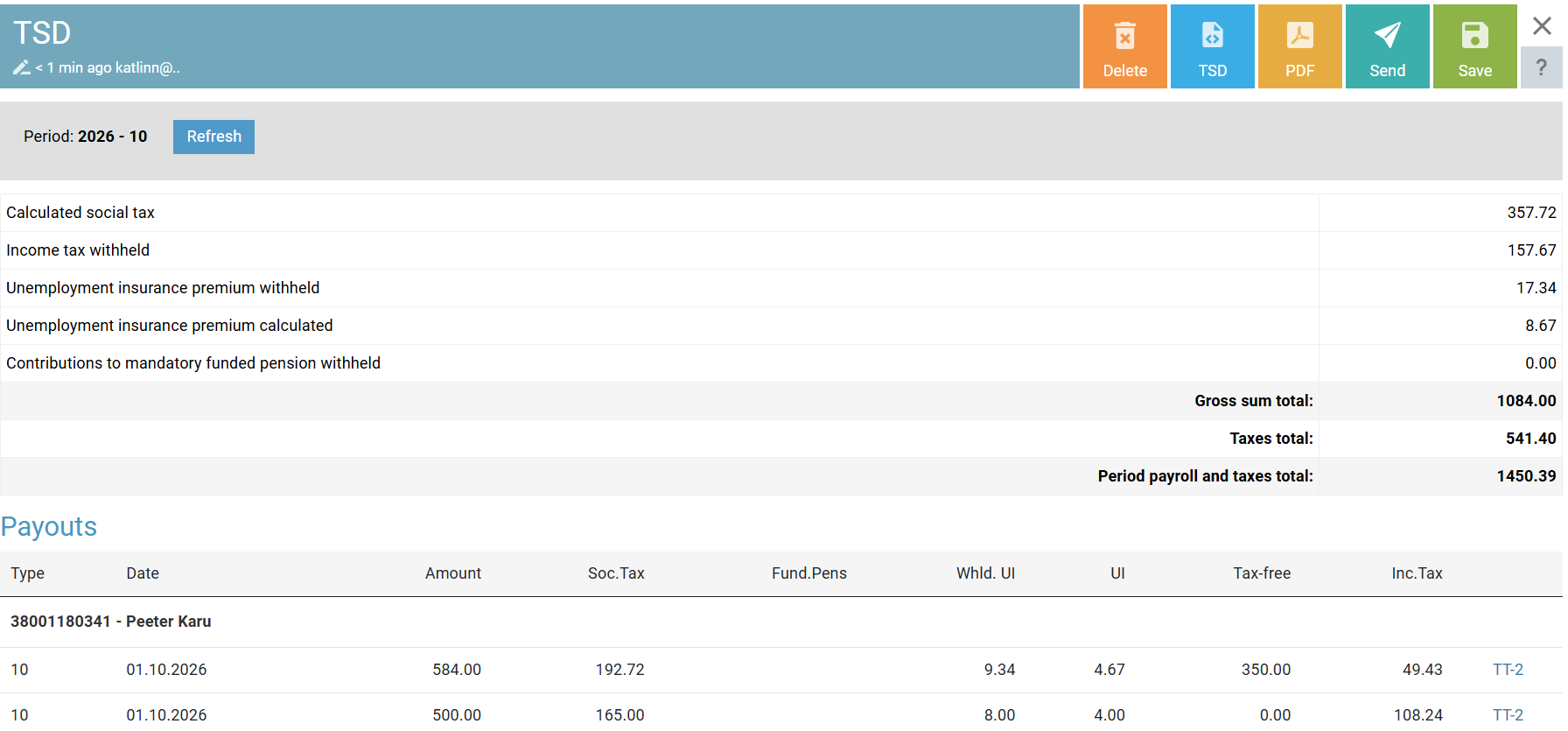
This section shows the summary data of the declaration, such as the calculated social tax, the income tax to be transferred, and the withheld and calculated unemployment insurance premiums.
Payouts
The payouts view shows all employees who received payouts during the period. At the bottom, you’ll also see employees who have an active contract but no payouts. However, only employees with payouts are included in the TSD. Each row on the payroll sheet creates one entry in the TSD. This means that if salaries on the payroll sheet are split by objects, the TSD will have several rows for one employee.
Payouts to residents and non-residents are shown together in the payouts view.
A1 certificate, non-residents and the employee card
Non-residents and the non-resident code
- If a non-resident doesn’t have an Estonian personal identification code and their payouts are declared under a non-resident code issued by the Estonian Tax and Customs Board, enter the non-resident code on the employee card (under Tax residency).
- If the non-resident code was entered in the ID code field, correct the employee card and regenerate the payroll sheet so the correct details appear on the TSD.
Employees with an A1 certificate and place of employment
From the October 2026 TSD, it’s important to set a place of employment for employees who hold an A1 certificate:
- A1 certificate issued by Estonia: set the employee’s place of employment (the country where they work) on the employee card.
- A1 certificate issued by another country: you don’t need to set a place of employment. It is always Estonia, and it’s added automatically for all employees with a foreign A1 certificate.
Submitting the TSD through the integration
If your company has the e-MTA integration activated, you can send the TSD together with the payout data through the integration. The e-MTA integration is included in the Pro package and you can activate it under Settings – Connected services.
When you prepare a TSD through the integration for the first time, two new columns appear on the TSD form: Action and MTA feedback.
Through the integration you can send the following to e-MTA:
- Registration: the payout is being sent for the first time
- Amendment: a change to the payout is being sent
- Cancellation: a deletion of the payout is being sent, cancelling it
The Action column shows the entry that will be sent to e-MTA next.
When you create a new TSD, all entries on the form are registrations. When you send the TSD for the first time, registrations are sent for all payouts on the form.
Updating the TSD
When you update the TSD, the system checks whether each payout has changed compared to the previous version.
- If the details of a payout have changed, its action is set to Amendment, and an amendment is sent to e-MTA the next time you send the TSD.
- If a payout from the previous version no longer exists in the newer version, its action is set to Cancellation, and a cancellation is sent to e-MTA the next time you send the TSD.
After updating, only the payouts that changed are sent to e-MTA: new registrations that weren’t on the original form, amendments to existing payouts, or cancellations of existing payouts. Rows that will be sent next time show the status Not sent in the MTA feedback column. To send the TSD data, click Send.
Confirming the TSD
From 5 October 2026, TSD declarations can only be sent to e-MTA through the integration as unconfirmed. To confirm a declaration, log in to e-MTA.
Corrective declaration of the confirmed TSD via the integration
If payout data changes during the period and the TSD is alreadt confirmed, first correct the details on the payroll sheet in SmartAccounts and then send the changes to e-MTA.
To send a corrective declaration, first open the confirmed declaration in e-MTA, click Edit and choose the reason for the change. You’ll then see the following choice:
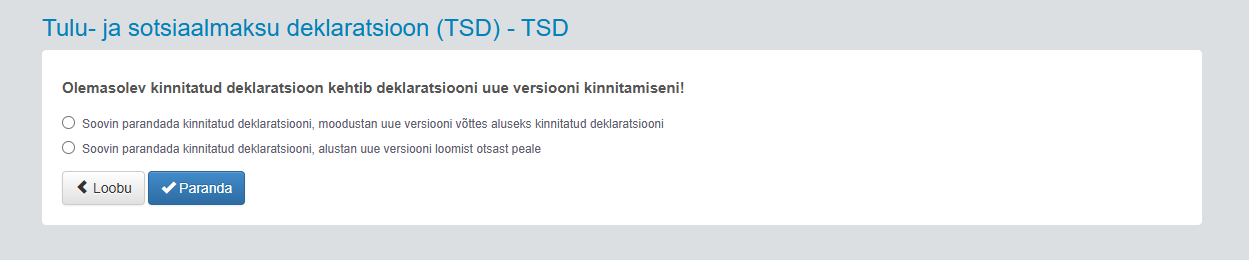
If you use the integration, choose the first option (use the confirmed version as the basis). The data you last submitted stays on the form, and only the amendments and cancellations to payouts are sent.
Submitting the TSD by file
If your company doesn’t have the e-MTA integration activated, you can upload the TSD as before, as an XML file that follows the XBRL GL standard.
A file always contains registrations for all payouts on the TSD form. This means you can’t use a file to update the payout data of selected employees only. A file always sends the payouts of all employees to e-MTA.
To send the TSD by file, prepare the declaration, download the file and upload it to e-MTA.
Corrective declaration via file
If payout data changes during the period, first correct the details on the payroll sheet in SmartAccounts and then update the TSD. Then submit the updated data in e-MTA as follows:
- If an unconfirmed TSD needs to be corrected: generate a new file in SmartAccounts and upload it to e-MTA. Before uploading the file again, make sure to delete the old declaration in e-MTA. This also deletes all other annexes you filled in manually, so you’ll need to fill them in again afterwards.
- If you’re editing a confirmed TSD and uploading a file: in e-MTA, open the declaration, click Edit, choose the reason for the change and then the second option (start creating a new version from scratch).
This deletes all previously submitted data in e-MTA. You can then upload a file that matches what you see on the TSD screen in SmartAccounts.
Please note: if the previous version of the declaration included annexes, you’ll need to fill them in again after uploading the new file.
Non-residents and payout data
Data for both residents and non-residents is entered in a single payouts view. For non-residents, set the country of tax residency on the employee card. If a non-resident doesn’t have an Estonian personal identification code, also enter the non-resident code under Tax residency.
If an employee holds an A1 certificate issued by Estonia, set the employee’s place of employment on the employee card. If an employee holds an A1 certificate issued by another country, you don’t need to set a place of employment. It is always Estonia, and it’s added automatically for all employees with a foreign A1 certificate.
In addition to the country of tax residency, non-residents must have a 3-digit payout type (Employment income (non-resident) or Vacation pay (non-resident)). If needed, you can set up additional payout types yourself under Payroll – Payroll settings.
Fewer payout types
With the new TSD, the number of payout types is reduced. Previously, there were separate TSD codes for payouts to employees with an Estonian A1 certificate and employees with a foreign A1 certificate. These separate codes are no longer needed, and all payouts are declared under the main payout code.
Example: payouts under an employment contract used to be declared with codes 10, 11 and 12. From now on, only code 10 is used, whether or not the employee has an A1 certificate.
If your company has set up its own payout types (under Payroll settings), the main TSD code is used automatically from the October 2026 TSD onwards, so you don’t need to change anything.
Important notes about the TSD
- Payout data on the TSD is grouped by personal identification code (or non-resident code). If two employees have been entered with the same personal identification code, their payouts are grouped together on the TSD.
- The code of the country that issued the A1 certificate is added on the TSD only for payouts to which the A1 certificate exemptions apply, such as salary income. For example, for rental income from agricultural land, the A1 country code selected for the employee is not added to the corresponding TSD row.
e-MTA interface activation
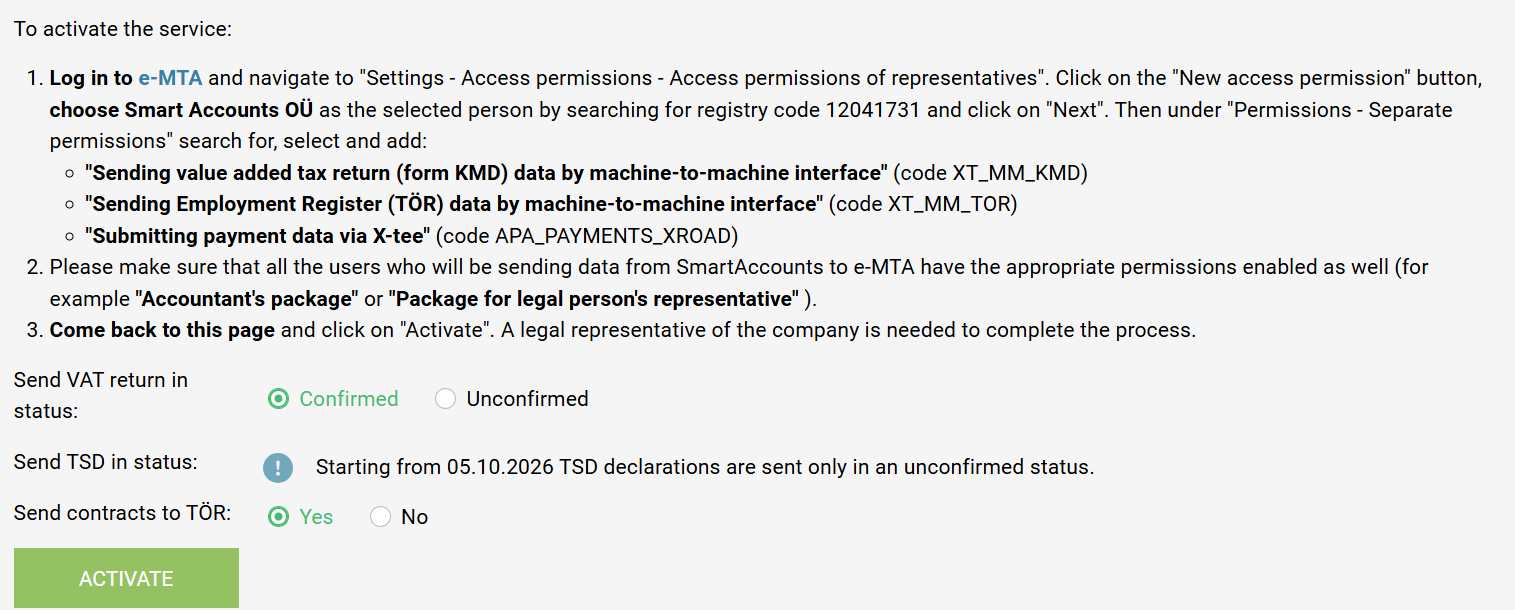
Tax and Customs Board interface activation
Data-based TSD from October 2026