

From 1 October 2026, TSD Annexes 1 and 2 will be replaced by a new payouts view. There will no longer be separate annexes: residents and non-residents will appear together in a single view.
Annexes 3–8 stay the same. SmartAccounts users will still need to fill them in manually in e-MTA.
For software users, submitting the TSD doesn’t change in any fundamental way. You can still submit declarations through the e-MTA integration or by uploading a file.
Below are a few things to keep in mind with the updated TSD.
TSD declarations are submitted as unconfirmed
For now, declarations sent through the integration can only be submitted as unconfirmed. To confirm a declaration, you’ll need to log in to e-MTA. This mainly affects users who previously submitted only Annexes 1 and 2 and had no other annexes to fill in.
If you also fill in Annexes 3–8 when you submit your TSD, nothing changes for you. You already had to log in to e-MTA to complete the annexes and give final confirmation.
Please note: after 5 October, older TSD declarations (for September and earlier) can only be submitted as unconfirmed as well.
Changes to the employee card
Employees with an A1 certificate and place of employment
From October, you must set a place of employment for employees who hold an A1 certificate:
- A1 certificate issued by Estonia: set the employee’s place of employment (the country where they work) on the employee card.
- A1 certificate issued by another country: you don’t need to set a place of employment. It is always Estonia, and it’s added automatically for all employees with a foreign A1 certificate.
Non-residents and the non-resident code
- If a non-resident doesn’t have an Estonian personal identification code and their payouts are declared under a non-resident code issued by the Estonian Tax and Customs Board, enter that code on the employee card (under Tax residency).
- If the non-resident code was entered in the ID code field, correct the employee card and regenerate the payroll sheet so the correct details appear on the TSD.
Custom payout types ander Payroll settings
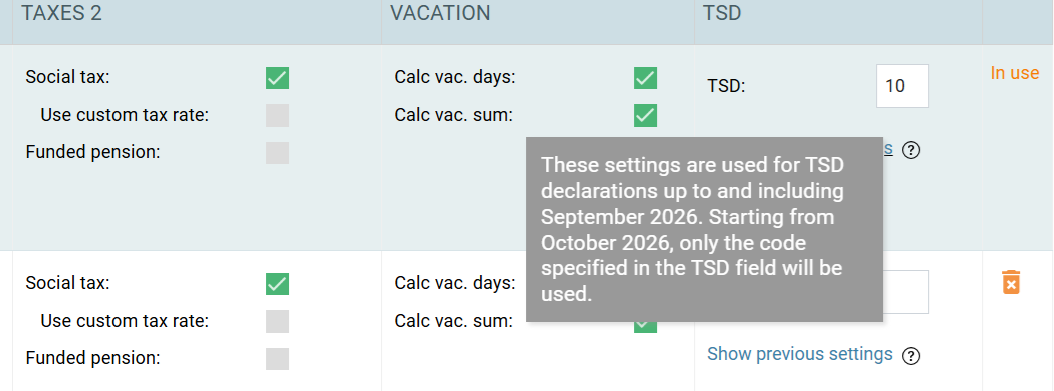
With the new TSD, the number of payout types is being reduced. Previously, there were separate TSD codes for declaring payouts to employees with an Estonian A1 certificate and employees with a foreign A1 certificate. These separate codes are no longer needed. All payouts are now declared under the main payout code.
Example: payout under an employment income used to be declared with codes 10, 11 and 12. From now on, only code 10 is used, whether or not the employee has an A1 certificate.
If your company has set up its own payout types, the main TSD code will be used automatically from the October TSD onwards, so you don’t need to change anything. The old Estonian A1 and foreign A1 codes are ignored, and the code in the TSD field is used instead.
Submitting the TSD
As before, you can submit the TSD through the integration or by uploading a file. You still create the TSD under Taxes – Payroll tax forms (TSD) – Add new. Payout data is not sent to e-MTA automatically.
Integration
If your company already has the e-MTA integration activated, you don’t need to update it after this release.
Through the integration you can send new payouts, amendments to payouts and cancellations of payouts to e-MTA. A payout can have one of these statuses:
- Registration: the payout is being sent for the first time
- Amendment: a change to the payout is being sent
- Cancellation: a deletion of the payout is being sent, cancelling it
You’ll see the same statuses in the TSD payouts view in SmartAccounts.
If a payout changes after the TSD has been sent to e-MTA through the integration, first correct the details in SmartAccounts and then send the changes to e-MTA. This keeps the data the same in both systems.
Corrective declaration via the integration
To send a corrective declaration, open the confirmed declaration in e-MTA, click Edit and choose the first option (use the confirmed version as the basis). The data you last submitted stays on the form, and only the amendments and cancellations to payouts are sent.
File
After this release, you can send TSD payouts to e-MTA as an XML file that follows the XBRL GL standard. The integration lets you send amendments as well as new payouts, but a file always contains all payouts together. So if anything changes during the period, the file won’t include only the changed rows. It always includes every payout.
Corrective declaration via file
If you upload data by file, choose the second option when editing the declaration in e-MTA (start creating a new version from scratch).
This deletes all previously submitted data in e-MTA. You can then upload a file that matches what you see on the TSD screen in SmartAccounts.
Filling in annexes for a corrective declaration
If you submit a corrective declaration by file, you’ll also need to fill in the annexes again in e-MTA. Uploading a corrective declaration deletes any annexes you filled in before.
***
In summary
- Preparing the TSD works much the same as before.
- Before you prepare the October TSD, review your employee card settings, especially for non-residents and employees with an A1 certificate.
- TSD declarations are sent as unconfirmed. To confirm them, log in to e-MTA.
- You don’t need to update the integration.
- You can also send amendments to payouts through the integration.
- You can’t upload only the changes by file. To make a change, upload a new file and fill in the TSD annexes again.
- Always make changes in SmartAccounts first, and only then in e-MTA.
You can find our general TSD guide here. If you have any questions, our customer support team is happy to help at info@smartaccounts.eu.