
Additional rules for bank payment import
You can set up additional rules under Payments -> Bank Payment Import -> More -> Settings.
The option to configure additional rules is available to Pro plan users. These rules are mainly intended for identifying transactions that do not have a source document, such as interest entries, recurring loan repayments, and similar transactions.
Additional rules are applied only if none of the default rules match a row. In other words, they apply only to rows that remain unmatched (red rows).
Setting up rules
Setting up a rule involves two steps.
- First, you need to configure the IF block, where you define the conditions that must be met for the rule to apply.
- In the THEN block, you define what exactly happens when a row matching the conditions in the IF block is found – in other words, which values are used when the bank payment is created.
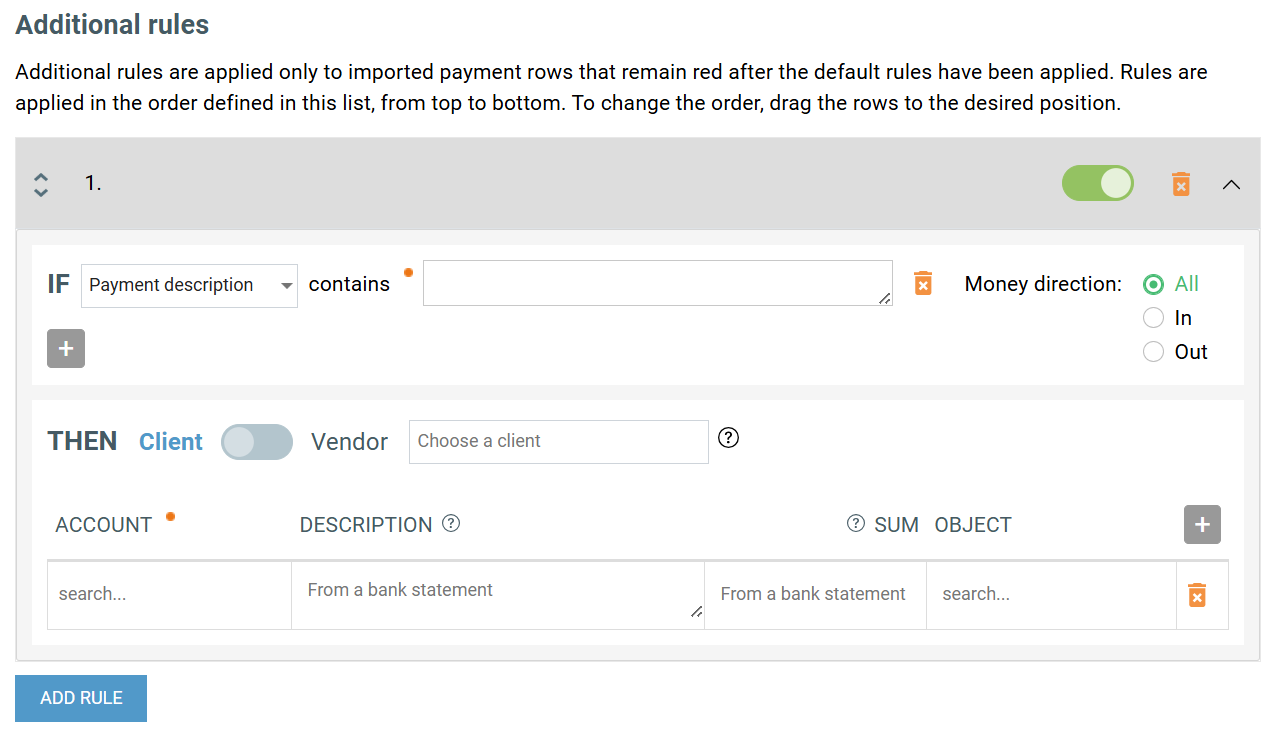
Conditions in the IF block
Field to search for in the bank file
You can choose from five different fields. After selecting the field, you must also enter the value to search for as free text (this field is mandatory):
- Payment description – for example, ‘account interest’ (‘konto intress’)
- Partner’s name – for example, ‘Selver’
- Partner’s reg. number
- Partner’s bank account
- Reference number
You can add as many IF conditions as needed. However, the rule is applied only if all configured conditions are met.
Value the field must contain
In the next field, enter the value that the selected field must contain. This field is mandatory.
Money direction
You can also define the money direction for the rule.
- All – the rule applies to both incoming and outgoing payments
- In – the rule applies only to incoming payments
- Out – the rule applies only to outgoing payments
By default, the value is set to All, meaning the rule applies to both incoming and outgoing payments.
THEN action
Next, you need to define which values are used to create the additional bank payment row when an imported row matches the IF conditions. You can add as many additional rows as needed.
- Client/vendor. You can link payments to a specific client or vendor. If a specific client or vendor is assigned to the rule, all import rows identified by that rule will be linked to that client or vendor. Selecting a client or vendor is optional. If the field is left empty, the client or vendor identified from the file will be assigned automatically based on SmartAccounts’ general bank payment rules. The client or vendor must already exist in the database, otherwis, it will not be assigned to the payment.
- Account. Selecting an account is mandatory.
- Description and sum. Entering a description and sum is optional. If a specific description or sum is defined in the rule, those values will be used. Otherwise, the description and amount identified from the account statement will be assigned to the payment.
- Object. Selecting an object is optional. If an object is defined in the rule, it will be added to payments identified by that rule.
- Sum.
-
-
- If the sum field is left empty, the payment will be assigned the remaining amount – in other words, the part of the transfer amount imported from the bank statement that has not yet been matched to any rows.
- If a fixed sum is entered, that amount is used instead.
- If there is more than one additional row, then when a new additional row is added, the amount of the previous additional row is automatically set to 0.00. The row cannot be left empty.
- If the sum of any additional row in the rule is set to 0.00, that row will not turn ‘green’ automatically and must be reviewed and saved manually by the user.
-
-
Rule name
When a rule is saved, SmartAccounts automatically creates a name for it based on the conditions defined in the IF block. The name is used to distinguish rules from one another.
Rule status
All rules can be set as active or inactive. By default, all rules are active.
Deleting rules
Any rule can be deleted at any time using the bin icon.
How rules are applied
Additional rules are applied to all unmatched import rows (that is, rows shown in red), and only to the part of the amount that was not covered by SmartAccounts’ default rules.
Additional rules are applied in the order in which they appear in the Additional rules section. If needed, you can change the order by dragging and dropping the rows.
The order of rules matters if you have created rules that could apply to the same payment row. In that case, the rule higher in the list will be applied first, and the next rule will no longer apply to that payment row.
If a payment row is found to which a rule applies, the sequence number of the additional rule is shown for that row. This makes it possible to identify which additional rule was applied.
Editing rules
If additional rules are changed and saved again, SmartAccounts will re-run the matching process based on the updated rules.
A payment row turns ‘green’ when it is ready to be saved. This means that all mandatory payment fields have been completed based on the additional rule, and the payment amount matches the amount imported from the bank file. Otherwise, the row remains ‘red’.
Please note: as mentioned above, rows where the amount of any additional row is set to 0.00 will never turn ‘green’. Those rows must be saved manually by the user.
Practical tips:
- An interest income rule can be created, for example, using Payment description contains condition. If a company uses multiple banks and wants to match interest received from each bank to a specific bank, or for example to different accounts, a separate rule must be created for each bank. In that case, the payment description value should be defined as precisely as possible so that it is unique across all rules.
- When configuring rules, it is important to note that incoming payments are linked to a client and outgoing payments are linked to a vendor. Therefore, for an interest income rule to create a successful match, the bank must be added as a client. If the bank is added as a vendor in an interest income rule, a green match will not be created, because the row will be created with the wrong sign and the payment will need to be corrected and saved manually.
- If a rule consists of two additional rows and the amount of one row is set to 0.00, the match will remain ‘yellow’ and the payment must be corrected and saved by the user.
- If a rule consists of two additional rows and both rows have fixed amounts that match the bank statement data, a ‘green’ match will be created. If the statement amount does not match the predefined amounts, the row will remain ‘red’ and must be corrected and saved by the user.
Examples of rule setup:
Example 1: interest income received from the bank
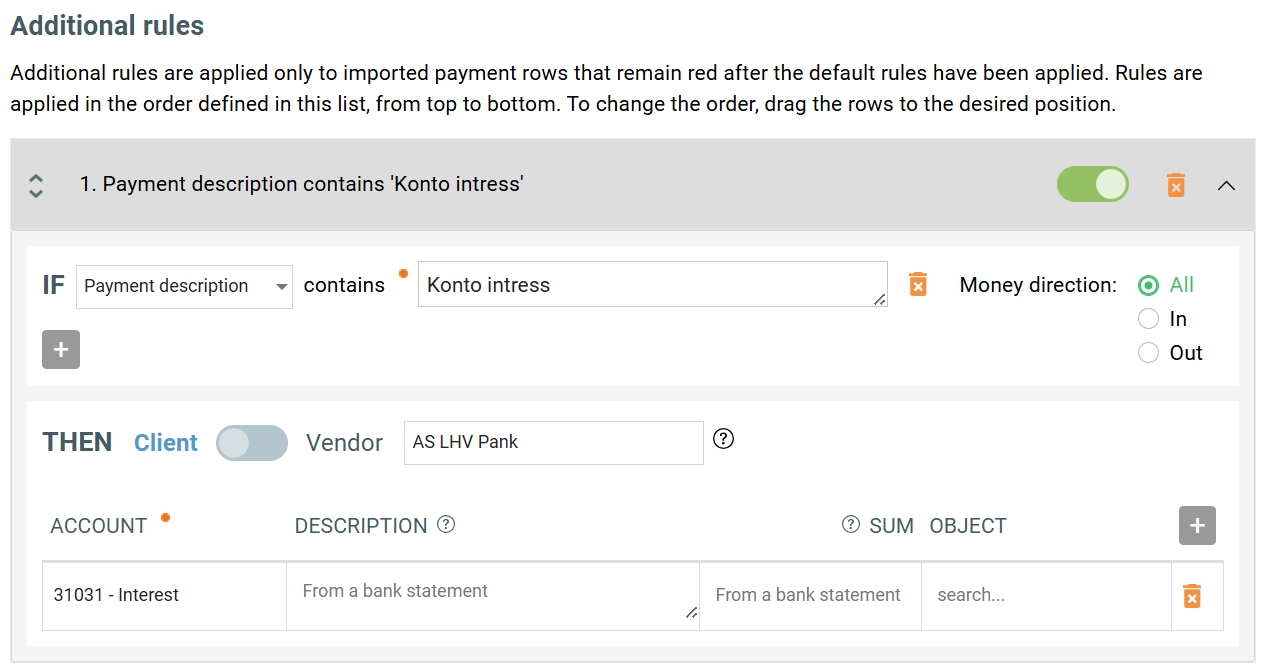
Please note: a separate rule must be created for each bank.
Example 2: matching payment description and partner name
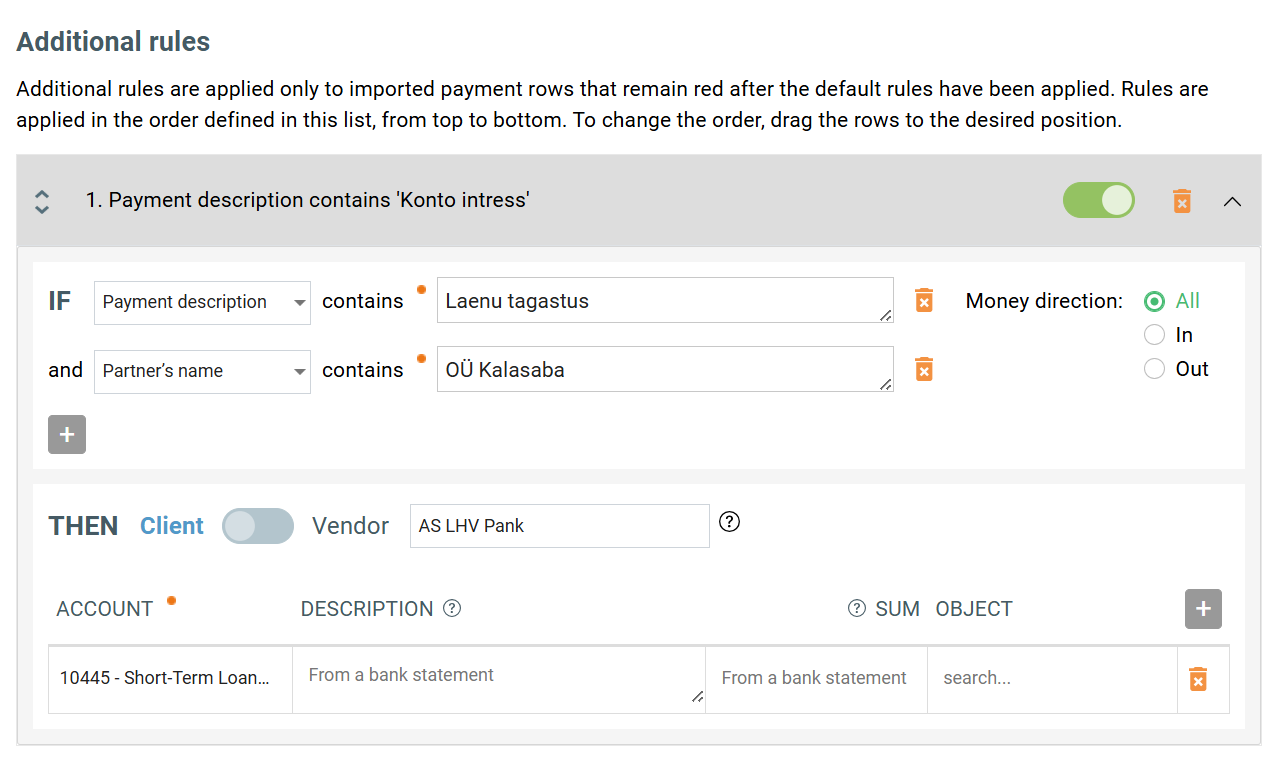
In this example, we have entered two rules and added the conditions that should be matched against the payment import rows.
Below is an explanation of how matching is performed on text fields.
If multiple conditions have been added, all of them must be met for the rule to apply. In our example, two IF conditions have been added – Payment description and Partner’s name – so both must match for the rule to apply.
How matching works
The value entered in the contains field must be present in the corresponding field in the bank file. Leading and trailing spaces are ignored, and uppercase and lowercase letters are treated as equivalent.
For example, if there is a rule where Payment description contains ‘Laenu tagastus’, then no match will be created for a row where the description is written as ‘Laenutagastus’ as one word.
However, a match will be created for descriptions such as:
- Laenu tagastus leping L0001
- Leping L0001 laenu tagastus
- LAENU TAGASTUS
- laenu tagastus
If there is a rule where Partner’s name contains OÜ Kalasaba, but the partner’s name in the statement is Kalasaba Osaühing, the rule will not apply.
The same logic applies here as described above: the full value entered in the contains field must be present in the corresponding field in the statement. In this case, the solution would be to define the rule as Partner name contains Kalasaba, without OÜ.
Additional rules for bank payment import